
- Published on Tuesday, August 9, 2022, last updated
GitLab Code Review: How to Review Merge Requests and Best Practices
- Authors

- Name
- Arthur Coudouy
- @arthurcoudouy
To do a code review in GitLab, open the merge request, go to the Changes tab, and select Start a review on your first comment so your feedback stays private until you are done. Then select Your review and submit it with one outcome: Approve, Comment, or Request changes.
This guide covers each step, how to set default reviewers, how to review code without a merge request, and the best practices that keep GitLab merge requests moving. If your team also wants to discuss merge requests in Slack, take a look at Axolo, (also incubated by Slack in 2023).
Table of Contents
- 1. Code review in GitLab
- How to do a code review in GitLab
- Why approving a merge request in GitLab is important
- GitLab default reviewers
- GitLab code review without a merge request
- GitLab Duo code review
- GitLab code review workflow
- GitLab merge request best practices
- 2. GitLab review apps
- How do review apps work?
- Why are review apps important?
- 3. GitLab CI/CD & automatic deployment
1. Code review in GitLab
How to do a code review in GitLab
GitLab has a built-in review flow on every tier (Free, Premium and Ultimate), on GitLab.com and GitLab Self-Managed. Here is how it works, according to the GitLab merge request reviews documentation:
- Request a review. The author assigns reviewers in the Reviewers section of the right sidebar, or with the
/assign_reviewer @usernamequick action. The merge request then appears in the reviewer's Review requested list. - Read the context. The reviewer reads the description and the existing comments, then opens the Changes tab to see the diff.
- Start a review. On the first comment, select Start a review instead of Add comment now. The comment stays unpublished and the sidebar shows that your review is in progress. Each following comment is saved with Add to review.
- Suggest changes. Use single-line or multi-line suggestions so the author can apply your proposal directly from the GitLab UI.
- Submit the review. Select Your review, check your pending comments, write an optional summary, and pick an outcome:
- Approve: leave feedback and approve the changes.
- Comment: leave general feedback without approving or blocking.
- Request changes: block the merge request until the author addresses your feedback (the blocking part requires GitLab Premium or Ultimate).
- Re-request a review. After pushing fixes, the author selects the Re-request a review icon next to the reviewer's name, or uses
/request_review @username.
When you submit, GitLab publishes all your comments at once and sends a single email to the people following the merge request, instead of one notification per comment.
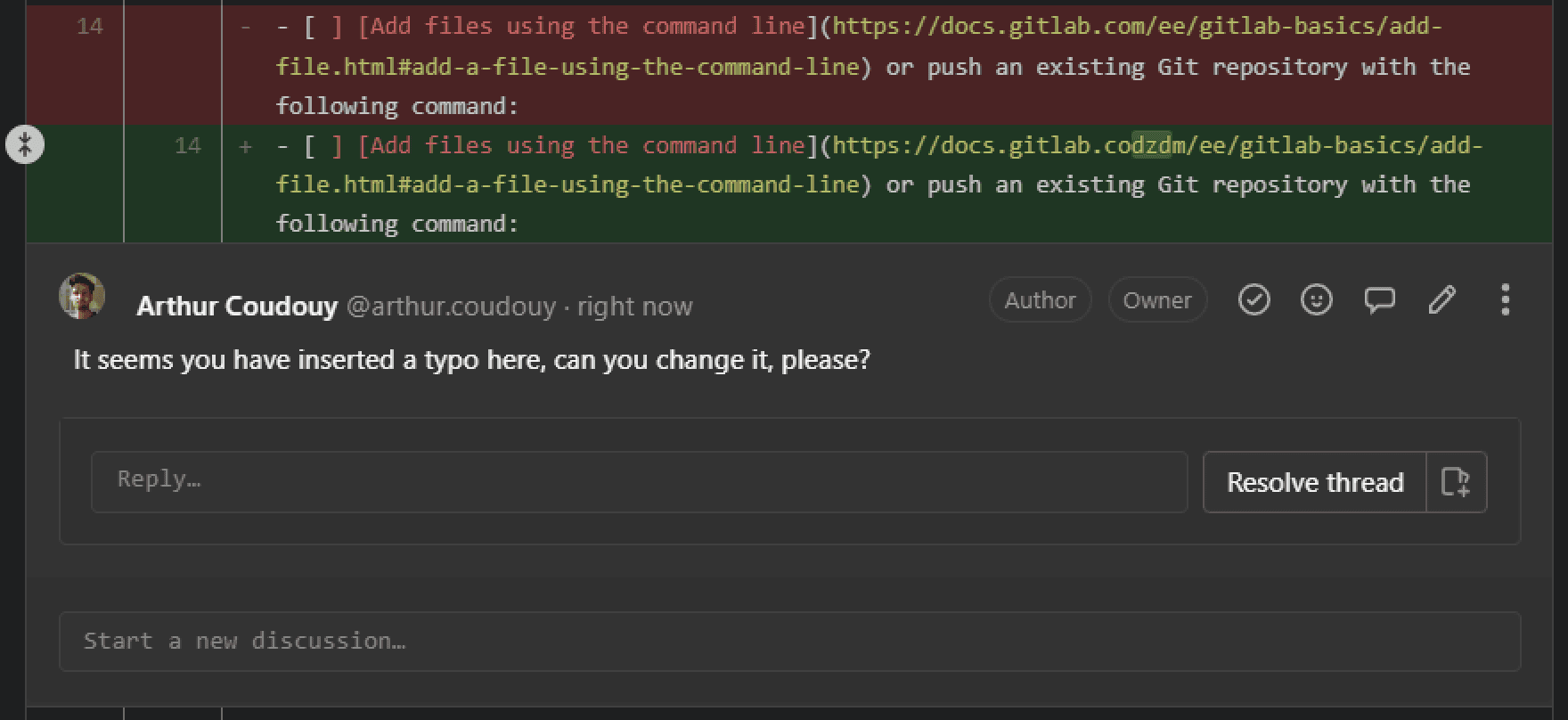
Why approving a merge request in GitLab is important
Approvals make sure that someone other than the author has looked at the change before it is merged:
- In GitLab Free, every user with at least the Developer role can approve a merge request, but approvals are optional and do not block merging.
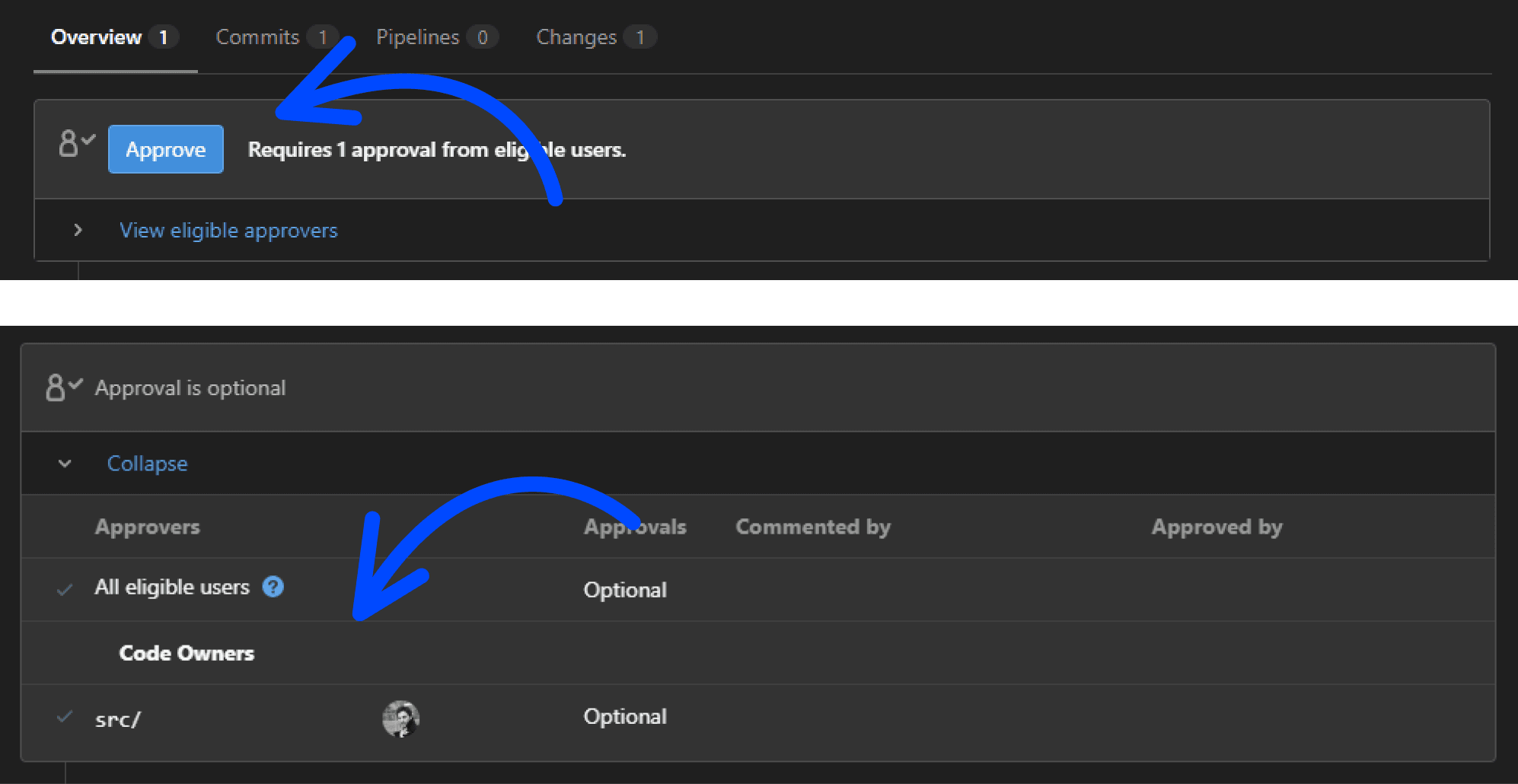
- In GitLab Premium and Ultimate, you can make approvals required, set the number and type of approvers, and require approval from Code Owners for the files they own.
Merge request approvals can be configured per project and at the group level. Administrators of GitLab Self-Managed Premium and Ultimate instances can also configure approvals for the entire instance.
Merge request approval rules in GitLab
Approval rules (GitLab Premium and Ultimate) set the minimum number of approvals required before code can be merged, and which users can approve. For example:
- Require one approval from the backend team on every merge request.
- Require Code Owners to approve changes to the files they own.
- Require a security team member to approve changes that introduce potential vulnerabilities (GitLab Ultimate).
Configure them in Settings > Merge requests > Merge request approvals. You can also prevent authors from approving their own merge requests and decide whether approvals are reset when new commits are pushed.
How to approve a merge request in GitLab
When an eligible approver opens a merge request, GitLab shows an Approve button in the merge request widget. You can also:
- Approve while submitting your review (the Approve outcome).
- Use the
/approvequick action in a comment. - Revoke your approval later with Revoke approval.
A merge request can be merged once it has the required approvals, unless another merge check blocks it: merge conflicts, unresolved threads, a failed CI/CD pipeline, or a pending change request.
You can find more detailed information in the Merge Request Approvals section of the GitLab documentation.
GitLab default reviewers
How to set default reviewers in GitLab
GitLab does not have a "default reviewers" list per project, but there are four ways to get the same result:
- Automatic reviewer assignment (GitLab Premium and Ultimate). Since GitLab 19.1, a project Maintainer can turn on Settings > Merge requests > Automatic reviewer assignment > Automatically assign all code owners as reviewers. GitLab then assigns the Code Owners of the changed files when a merge request is created in a ready state, or when a draft is marked as ready. It needs a CODEOWNERS file (see below) and skips merge requests that already have a reviewer.
- Recommend Reviewers Flow (GitLab Premium and Ultimate, GitLab Duo Agent Platform). Generally available since GitLab 19.5, it recommends the minimum number of reviewers needed to satisfy each approval rule, based on availability, workload and time zone. You still choose who to assign.
- A merge request description template. Quick actions in description templates run when the merge request is created, so a default template containing
/assign_reviewer @usernameassigns that reviewer every time (the author needs permission to set reviewers). - An external tool. On GitLab Free, our free Auto Assign Reviewer for GitLab reads your CODEOWNERS file and assigns reviewers on new merge requests.
The full details are in the automatic reviewer assignment documentation.
GitLab Code Owners for merge requests
Code Owners is a GitLab Premium and Ultimate feature. Create a CODEOWNERS file to specify which users or groups own which files and directories in a repository. GitLab looks for the file in three places:
- In the root of your repository
- In the
.gitlab/directory - In the
docs/directory
Enter rules that follow these patterns:
## Code Owners for a file
filename-path @username1 @username2

## Code Owners for a directory
directory-path/ @username1 @username2

## All group members as Code Owners for a file
filename @groupname

## All group members as Code Owners for a directory
directoryname/ @groupname

## Set up group members as Code Owners for the entire repository
* @groupname
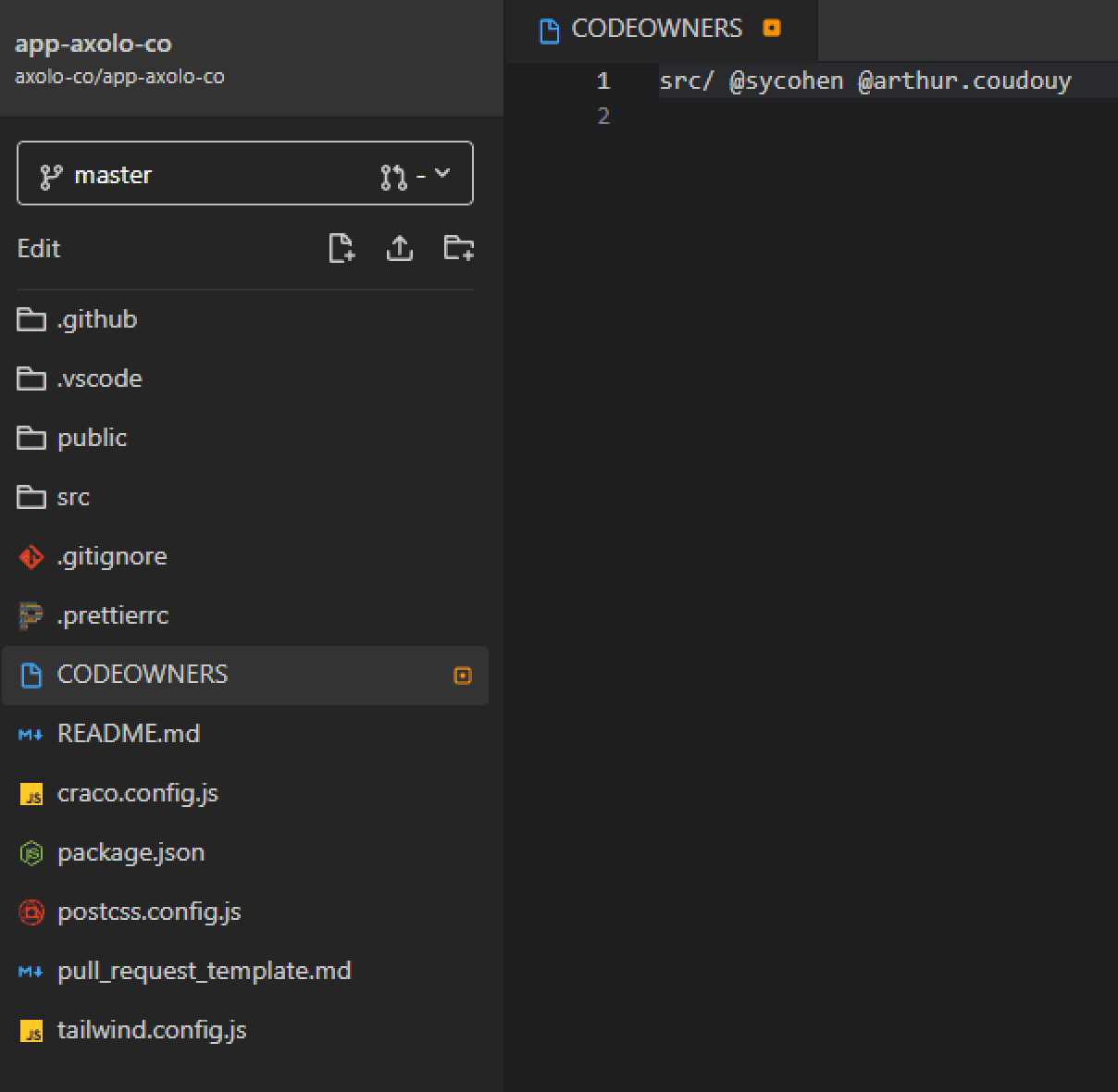
Once the file is in place, Code Owner names are displayed on the files they own, and the Assign reviewers drawer of a merge request lists the Code Owners for the changed files. Combined with protected branches, you can require their approval before merging. More information in the Code Owners documentation.
GitLab auto assign reviewers
If you are on GitLab Free, or want reviewers assigned without changing your GitLab settings, we built a free side project: Auto Assign Reviewer for GitLab by Axolo. You don't even need to create an Axolo account to use it.
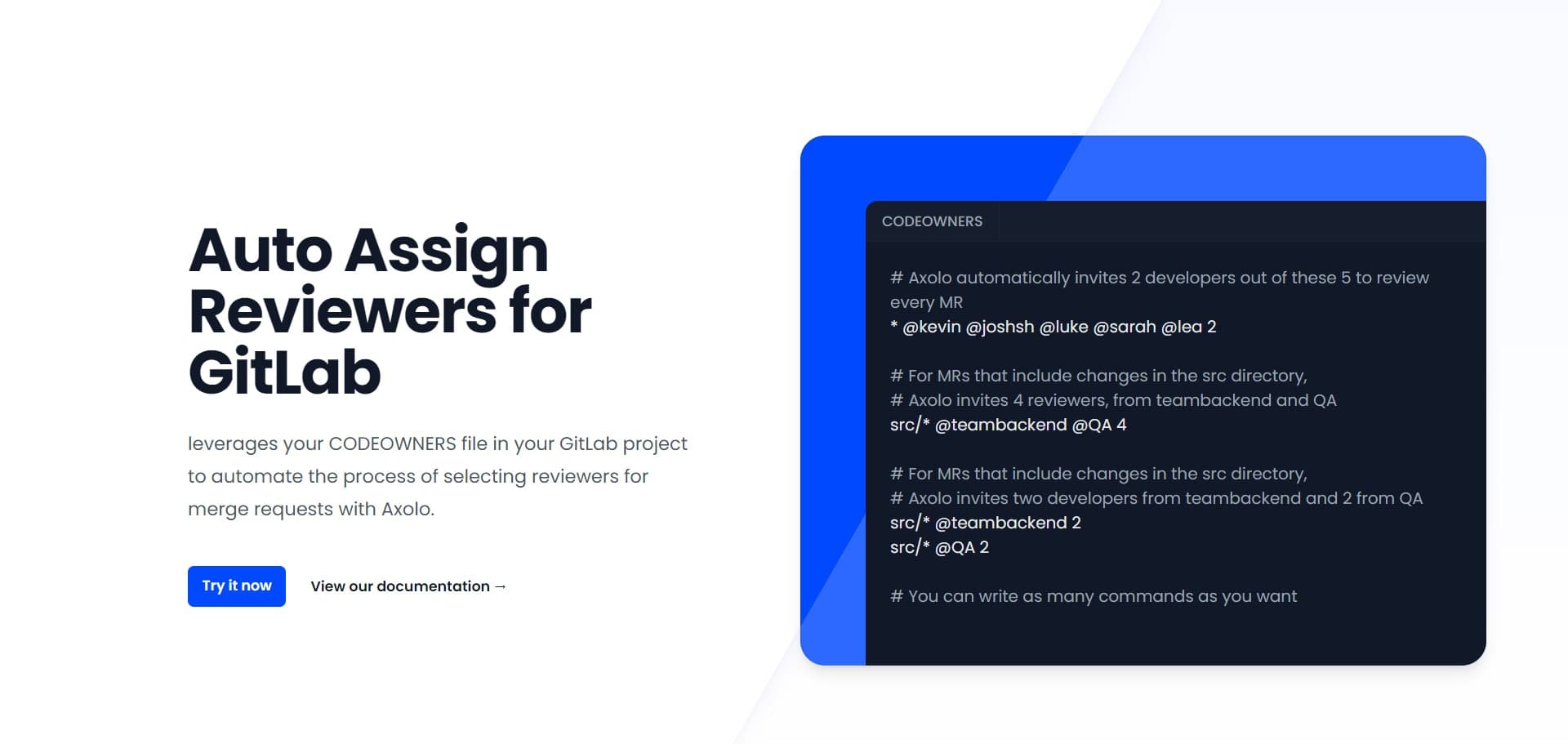
Use the Auto Assign Reviewer for GitLab to ... well automatically assign your reviewers on merges requests
The tool reads your CODEOWNERS file to find the right reviewers and assigns them to your merge requests automatically.
GitLab code review without a merge request
Reviews, approvals and review status live on merge requests, so there is no full review flow outside of them. You still have two options:
- Comment on a commit. Go to Code > Commits, select a commit, and add a comment or start a thread. This works for a quick question on code that is already on a branch.
- Open a merge request for the review only. To review existing code, for example an old feature or a whole repository, create a branch from an earlier commit (or an empty branch), then open a merge request from the branch you want reviewed into it. Reviewers get the full diff, threads and approvals. Close the merge request without merging when the review is done.
GitLab Duo code review
GitLab can also review merge requests with AI. Assign @GitLabDuo as a reviewer, or use /assign_reviewer @GitLabDuo, and GitLab Duo posts review comments on the diff. Two versions exist:
- Code Review Flow, the agentic version, available on every tier and billed with GitLab Credits.
- GitLab Duo Code Review, the original version, for users with the GitLab Duo Enterprise add-on (GitLab Premium and Ultimate).
Both can run automatically when a merge request is created, and both accept custom review instructions. An AI review is a good first pass, not a replacement for a teammate who knows the code. See the GitLab Duo in merge requests documentation.
GitLab code review workflow
- Push your changes to a branch, from your terminal or the GitLab interface.
- Open a merge request. Mark it as a draft while it is not ready, so nobody reviews unfinished work.
- Mark it as ready and request reviewers (or let automatic reviewer assignment do it).
- Wait for the CI/CD pipeline to pass.
- Reviewers start a review, then submit it with Approve, Comment or Request changes.
- The author resolves the threads, pushes fixes, and re-requests a review.
- Once the required approvals are in and every merge check passes, merge.
Most delays happen between steps 3 and 5, while the merge request waits for someone to notice it. A GitLab Slack integration such as Axolo brings review requests, comments and pipeline results into Slack so reviewers see them without checking GitLab.
GitLab merge request best practices
- Keep merge requests small. A diff that can be read in one sitting gets a faster, better review.
- Write a useful description. Explain why the change is needed and how to test it. A default description template makes this a habit.
- Use drafts. Draft merge requests cannot be merged and signal that the work is not ready for review.
- Let the pipeline run first. Reviewers should not spend time on code that fails its tests.
- Require approvals on protected branches (Premium and Ultimate), and require Code Owners approval for sensitive paths.
- Resolve every thread. Turn on "All threads must be resolved" in the merge checks so no comment is lost.
- Use suggestions. A suggested change is quicker to apply than a comment describing it.
Enable your team to reviewmerge requests faster with Axolo
2. GitLab review apps
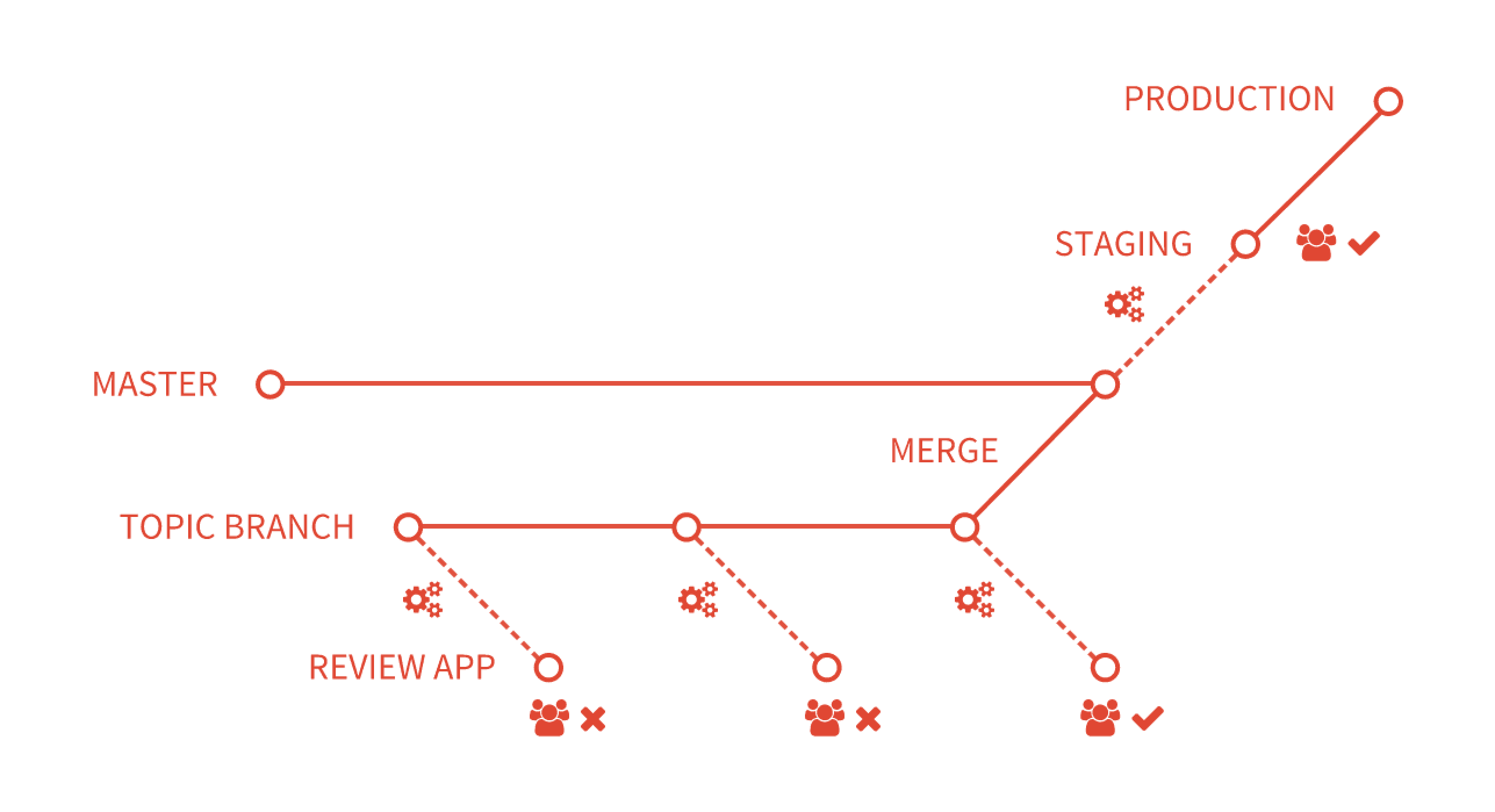
Built-in GitLab review apps have four main characteristics:
- By spinning up a dynamic environment for your merge requests, you can automatically provide a live preview of changes made in a feature branch.
- Allow designers and product managers to see your changes without having to check out your branch and test them in a sandbox environment.
- Are completely integrated with GitLab's DevOps LifeCycle.
- Give you the freedom to deploy your changes wherever you want.
How do review apps work?
A Review App is a branch-to-environment mapping. Access to the Review App is made available via a link on the branch's merge request.
The following is an example of a merge request with a dynamically set environment. A branch was successfully built in this example and deployed in a dynamic environment accessible by selecting the View app.
Following the addition of Review Apps to your workflow, you follow the branched Git flow. That is, push a branch and let the runner deploy the Review App based on the dynamic environment job's script definition. Then, the runner will build and deploy your web application.
To view the changes live, select the link in the merge request related to the branch. You have now set up a new review environment!
If you're interested, you can learn more in the dedicated GitLab Review App Documentation section.
Why are review apps important?
GitLab review apps for developers
Developers can begin collecting feedback much sooner. Submit a merge request and test your changes in real-time. When you push to master, you'll know that your changes have gone through CI testing as well as a live review where the team can ensure that everything works as expected.
GitLab review apps for the design, product, and marketing team
Giving feedback to designers, product managers, marketing colleagues, and others has never been easier. To preview changes, you won't need to check out branches or set up a staging environment. With Review Apps, you can see the live changes by clicking a link. Hopefully, this means you'll be able to provide more timely and accurate feedback.
Axolo is a Slack app to help techteams review merge request seamlessly
3. GitLab CI/CD & automatic deployment
GitLab developed an internal CI/CD tool for software development following the continuous methodologies:
- Continuous Integration (CI)
- Continuous Delivery (CD)
- Continuous Deployment (CD)
Continuous Integration works by pushing small changes to your application’s codebase hosted in a Git repository, and, to every push, run a pipeline of scripts to build, test, and validate the code changes before merging them into the main branch.
Continuous Delivery and Deployment consist of a step further CI, deploying your application to production at every push to the default branch of the repository.
These methodologies allow you to catch bugs and errors early in the development cycle, ensuring that all the code deployed to production complies with the code standards you established for your app.
For more detailed information on GitLab CI/CD, you can watch a Demo: CI/CD with GitLab made by the GitLab team or surf through the CI/CD Documentation.